
Prototypes in usability tests
A prototype is the interactive experience participants use during a FromUsers usability test. Choose the source that matches how your design team shares work.
Supported sources
Section titled “Supported sources”| Source | How you attach it | Notes |
|---|---|---|
| Figma | OAuth connection, then select the prototype | Best when design already lives in Figma |
| ProtoPie | Connect or provide the ProtoPie prototype reference | Use for high-fidelity interaction |
| Adobe XD | Attach the XD prototype | Keep sharing permissions open for participants |
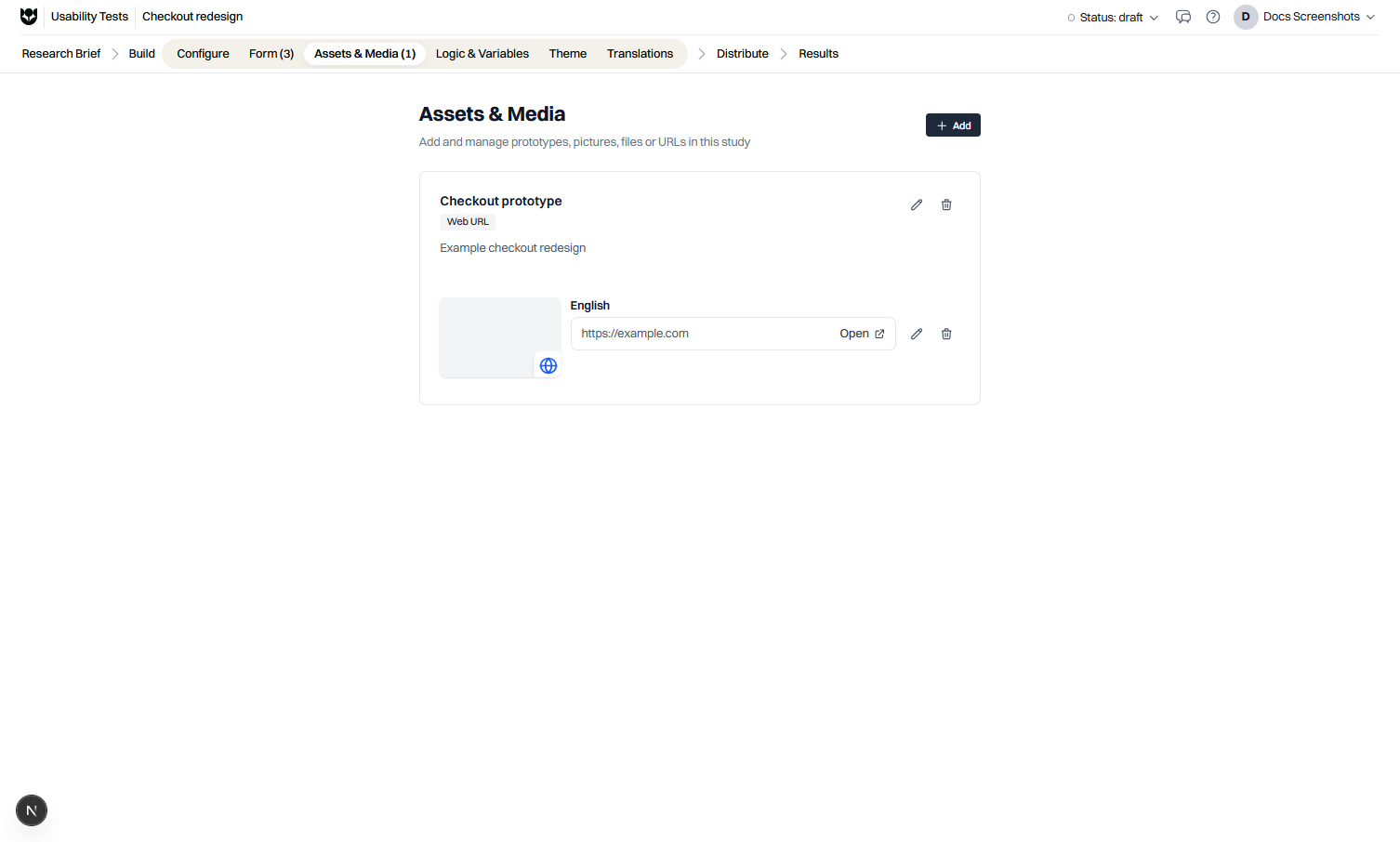
| URL | Paste a publicly reachable URL | Staging sites and web apps |
| Upload | Upload prototype assets supported by FromUsers | Use when you cannot share a live link |
Participants open these through the respond flow. They do not need a FromUsers researcher account.
Choose a source
Section titled “Choose a source”- Use Figma when product and design already collaborate there.
- Use ProtoPie or Adobe XD when that is the system of record for interaction.
- Use URL for coded staging builds or production pages under test.
- Use upload when external sharing is restricted.
Attach a prototype
Section titled “Attach a prototype”- Open your usability test in Draft (or Pause a Live study before major changes).
- Open prototype settings in the editor.
- Select the source type.
- Complete OAuth or paste the URL / upload files.
- Confirm the correct starting screen or entry URL.
- Save, then open Preview.
Figma tips
Section titled “Figma tips”- Connect with the Google or Figma account that owns access.
- Grant FromUsers the permissions requested during OAuth.
- Select the prototype flow participants should enter.
- Re-check access if teammates cannot preview.
URL tips
Section titled “URL tips”- Prefer stable staging URLs over frequently changing feature branches.
- Ensure the URL loads without VPN-only access unless all participants use that VPN.
- Define success URLs in task settings when you measure goal completion.
- Install and test the website testing extension when you need advanced URL tracking.
Device fit
Section titled “Device fit”Match allowed devices to the prototype:
- Desktop-only layouts: allow desktop only.
- Responsive web: allow desktop, tablet, and mobile as appropriate.
- Touch-specific ProtoPie flows: include mobile or tablet.
Limitations
Section titled “Limitations”- Participants must reach the prototype from their browser session in the test.
- If sharing permissions expire, tasks fail even when the study is Live.
- Heavy prototypes can feel slow on mobile networks. Call that out in instructions when relevant.
- Interactive task quality depends on a reliable prototype more than on question copy.
Example
Section titled “Example”You are testing a new settings redesign:
- Connect the Figma prototype for Settings.
- Allow desktop and tablet.
- Add a goal-based task: change notification preferences.
- Preview on both device classes before Live.
Related
Section titled “Related”Common questions
How do I connect Figma?
Choose Figma as the prototype source and complete OAuth when prompted. Then select the file or frame participants should open.
Can I test a live website?
Yes. Use a URL prototype. For advanced success URL tracking, use the website testing extension.
What if the prototype changes after I go Live?
Update the connected source carefully, then preview again. If the flow changed, Pause the study while you fix tasks and success criteria.