
Navigate FromUsers
The FromUsers portal is organized so you can move from overview to editor to results without hunting for tools. This page maps the main areas.
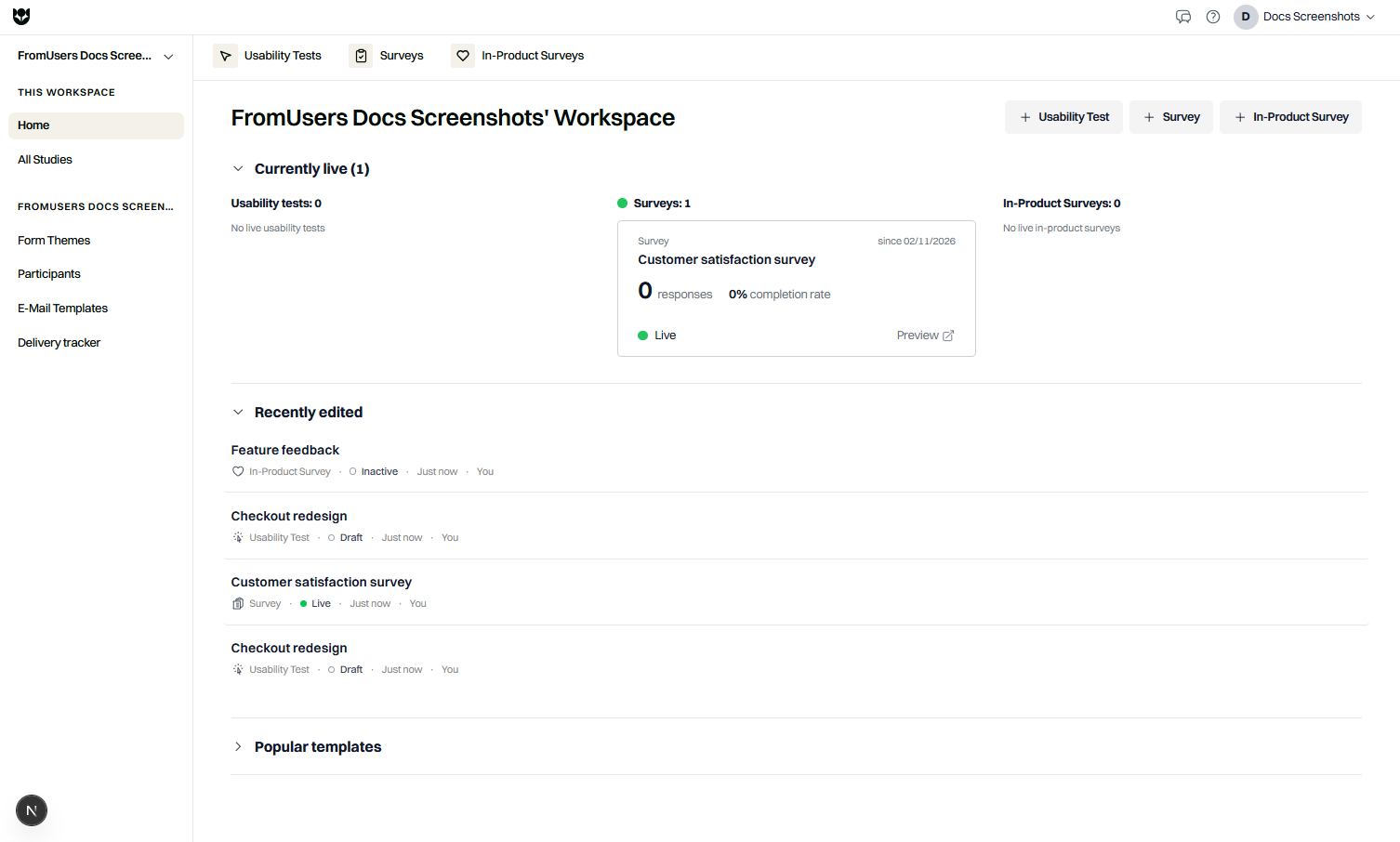
Top bar and study types
Section titled “Top bar and study types”Across the top you switch between the three study lists:
- Surveys
- Usability Tests
- In-Product Surveys
Each list shows studies you can open, filter by status, and create from. Status labels you will see include Draft, Live, Paused, and Closed. In-product surveys are often shown as Live or Inactive depending on whether they are collecting.
Use the profile menu for Settings, Documentation, and Sign out.
Left sidebar
Section titled “Left sidebar”| Item | What you use it for |
|---|---|
| Home | Workspace snapshot and shortcuts to create studies |
| Workspaces | Create and manage workspaces, visibility, and access |
| Results and Insights Studio | Analytics hub; open a study for per-study results |
| Distribution | Email templates and message tracking |
| Participants | Participant samples and participation records |
| Branding and Appearance | Organization branding templates |
If an item is missing for your role, your organization Admin has limited your access, or your plan does not include that area yet.
Workspaces
Section titled “Workspaces”Workspaces group studies by team or project.
| Setting | Options | Meaning |
|---|---|---|
| Visibility | Private or Shared | Who in the organization can discover the workspace |
| Access | View only or Editable | Whether members can change studies inside it |
Assign a workspace when you create a study. Move studies later if your permissions allow. Coffee includes one workspace. Pro and Custom support more seats and workspace usage as your team grows.
Inside a study editor
Section titled “Inside a study editor”When you open a study, the editor typically exposes these areas:
| Tab or area | Purpose |
|---|---|
| Configure | Title, study-level settings, distribution options |
| Build | Pages, sections, questions, tasks, endings |
| Logic | Display rules, branching, variables |
| Brand | Branding template and appearance |
| Preview | Participant walkthrough before Live |
Usability tests add prototype and recording settings. In-product surveys add website, display mode, targeting, triggers, and frequency.
Results Studio
Section titled “Results Studio”From a study list, open results for that study, or start from Results and Insights Studio in the sidebar. Expect response tables, charts for closed questions, recordings for usability (when enabled), and AI-assisted summaries on Pro and Custom.
Settings
Section titled “Settings”Under Settings (profile menu), Admins manage team seats, plan, and organization options. Members update their profile. AI keys and related options appear when your plan includes AI.
Typical paths
Section titled “Typical paths”Create something new
- Home or study list → New study.
- Configure → Build → Preview → Live.
Analyze an existing study
- Open the study list for that type.
- Open the study → results, or use Results Studio.
Install in-product feedback
- Create a website under in-product setup.
- Install the SDK script.
- Create an in-product survey targeted to that website.
Related
Section titled “Related”Common questions
Where do I switch study types?
Use the top navigation for Surveys, Usability Tests, and In-Product Surveys. Each list is separate even though the builder feels familiar.
Where is documentation inside the app?
Open the question mark icon in the top bar, or use Documentation in the profile menu. Both open this docs site.
Can Viewers create studies?
No. Viewers have read-only access. Members and Admins create and edit studies, subject to workspace permissions.