
Study builder overview
The study builder is where you structure pages, questions, logic, theme, and settings before you distribute a study. Surveys, usability tests, and in-product surveys share the same building model, with a few type-specific tabs and settings.
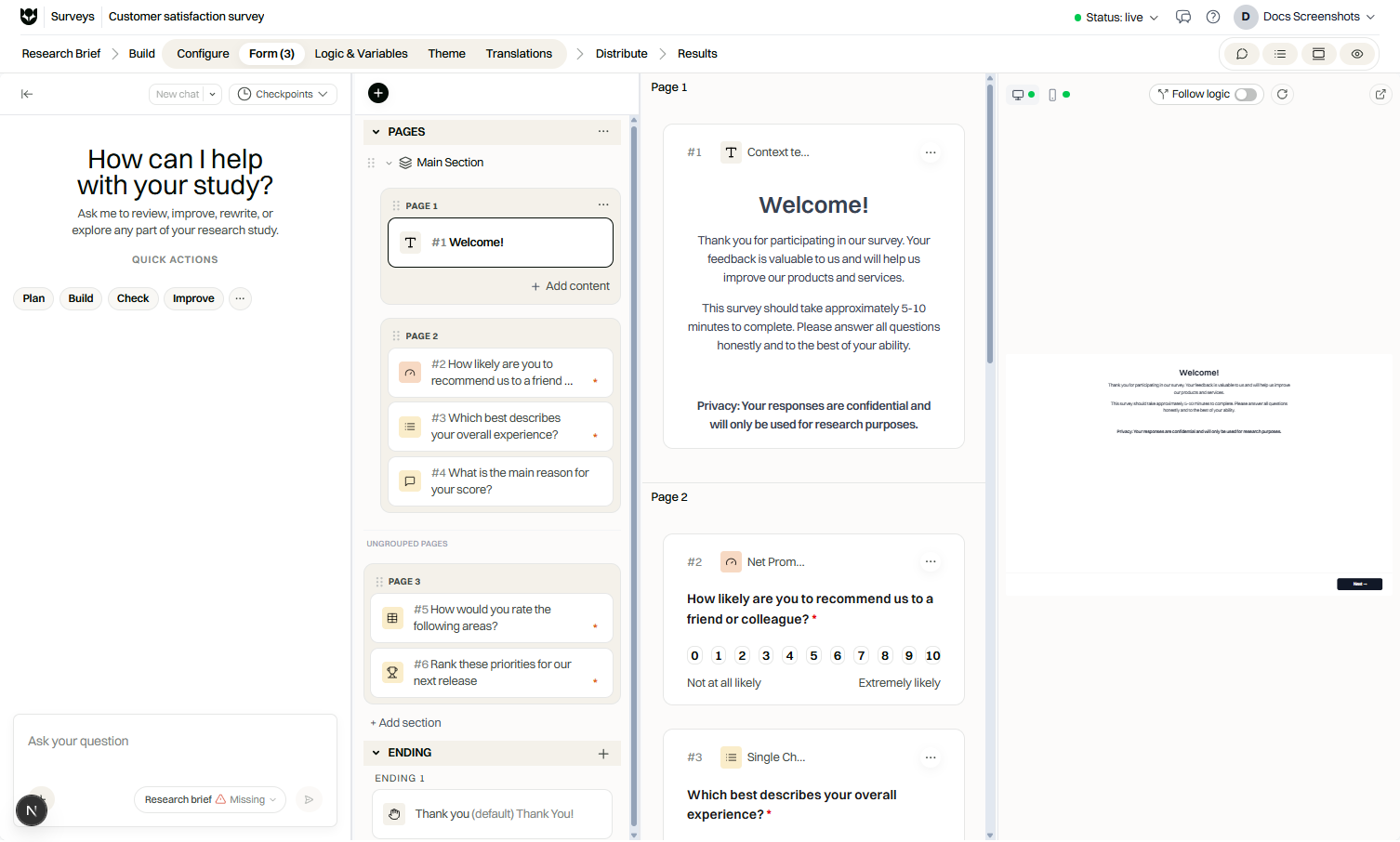
Editor workflow
Section titled “Editor workflow”Across the top of a study you move through major areas such as Research Brief (when used), Build, Distribute, and Results.
Under Build, use these sub-tabs:
| Tab | What you do there |
|---|---|
| Configure | Study-level details, navigation, capturing, collaboration |
| Form | Pages, sections, questions, screeners, endings |
| Assets & Media | Prototypes and media (usability tests) |
| Logic & Variables | Display logic, branching, variables, formulas |
| Theme | Visual appearance and branding for the study |
| Translations | Languages and translated strings (when the study exists) |
A collapsible Preview panel lets you try the participant experience in desktop or phone viewports without leaving the builder.
How a study is structured
Section titled “How a study is structured”- Study: the container with status, settings, and distribution
- Sections / subsections (optional): groups of pages for organization, randomization, or logic
- Pages: one participant screen at a time
- Content blocks / questions: what appears on each page
- Legal consent and Screener (optional): appear before main pages
- Endings: completion messages and optional redirects
Form content is versioned with Checkpoints. See Study versions.
Configure essentials
Section titled “Configure essentials”Configure groups settings into areas such as:
| Area | Examples |
|---|---|
| General | Study details, display mode (in-product), collaboration, template listing when applicable |
| Capturing | Participant responses, recording and tracking (usability), allowed devices (usability) |
| Experience | Study navigation (back button, progress bar) |
Common switches:
| Setting | Purpose |
|---|---|
| Save incomplete responses | Keep partial progress when enabled |
| Limit to one response per participant | IP-based duplicate limit for surveys and usability tests |
| Show back button | Allow moving to previous pages |
| Show progress bar | Show completion progress |
| Screen recording / Participant recording | Usability capture options (Pro-gated) |
| Allowed devices | Mobile, tablet, desktop for usability tests |
You can also change workspace from Configure when you need to Move study (with confirmation).
Form canvas
Section titled “Form canvas”On Form:
- Use the pages sidebar to select Legal consent, Screener, main pages, or Ending entries.
- Add pages or content with Add content, templates, import, or AI tools.
- Edit block settings in the inspector for the selected question.
- Open Preview to validate required fields, navigation, and device fit.
Theme and logic
Section titled “Theme and logic”- Theme: apply branding templates and study-level visual choices so the participant experience matches your organization.
- Logic & Variables: show or skip content, branch between pages, pipe answers, and define variables. See the Logic and randomization section of the docs for rule details.
Typical build sequence
Section titled “Typical build sequence”- Create the study (scratch, template, import, or AI draft).
- Configure details and capturing settings.
- Build pages and questions on Form.
- Add screener or legal consent if needed.
- Attach prototypes on usability tests (Assets & Media).
- Add logic, theme, and translations.
- Preview thoroughly, then set status to Live.
Related guides
Section titled “Related guides”- Pages, sections, and subsections
- Page templates
- Question types overview
- Preview and test
- Publish and study status
Common questions
Where do I edit questions?
Open Build, then the Form tab. Select a page in the sidebar and add or edit content blocks on the canvas.
Is Preview its own top-level tab?
Preview is a collapsible panel you can use while editing Form or Theme. You can also open a preview link in a new tab.
What is different in a usability test builder?
Usability tests include an Assets and Media tab for prototypes, plus capturing settings for recording and allowed devices.