
Create a survey
Create a survey when you need a shareable questionnaire without prototype tasks or SDK install.
Prerequisites
Section titled “Prerequisites”- Admin or Member with Editable workspace access.
- Room under your plan for another active study when you publish.
- Rough outline of pages and audience.
Create the study
Section titled “Create the study”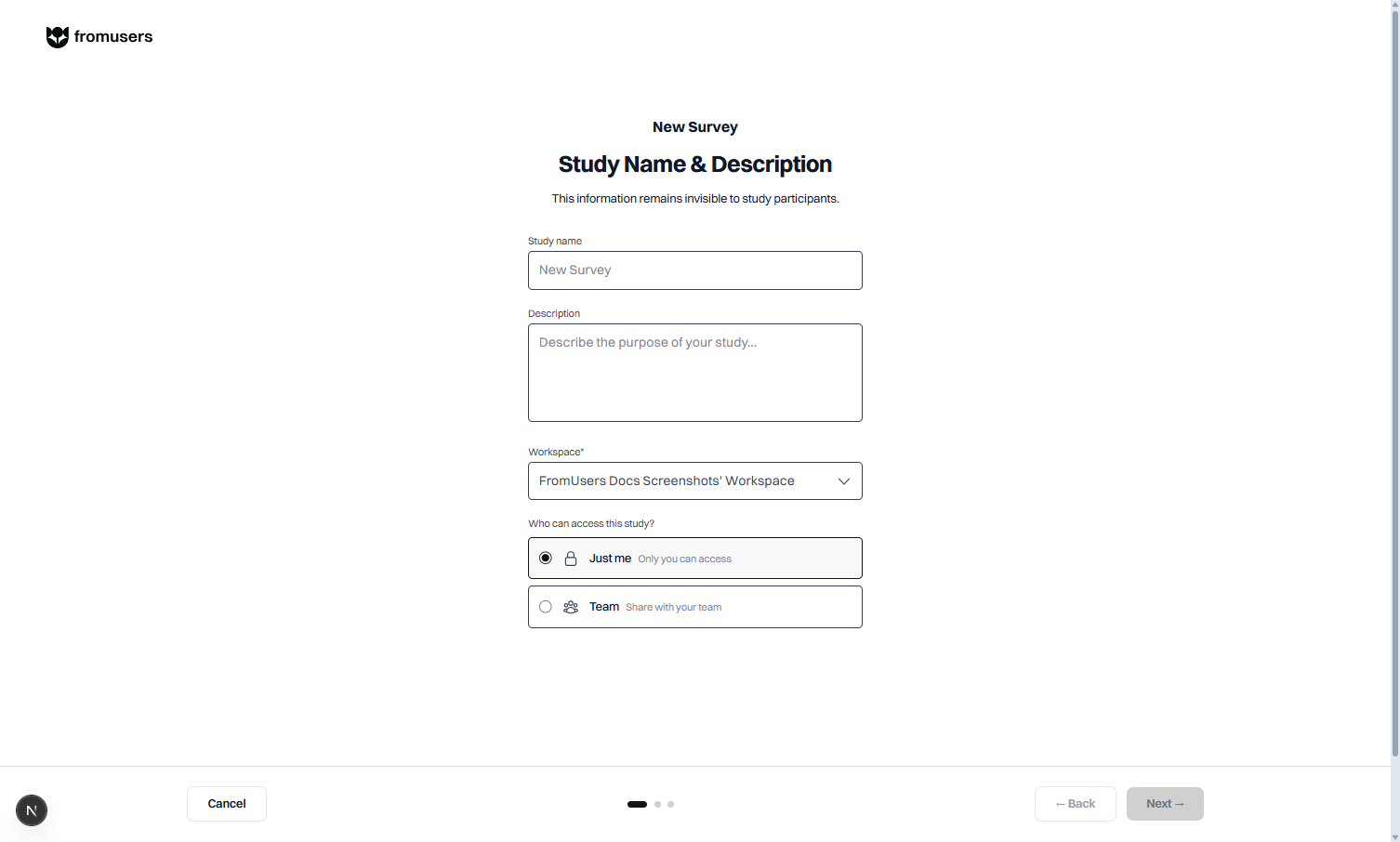
- Open Surveys or Home.
- Choose New survey.
- Start from scratch or with AI (Pro and Custom).
- Name the survey and pick a workspace.
- Open the editor (Draft).
Configure
Section titled “Configure”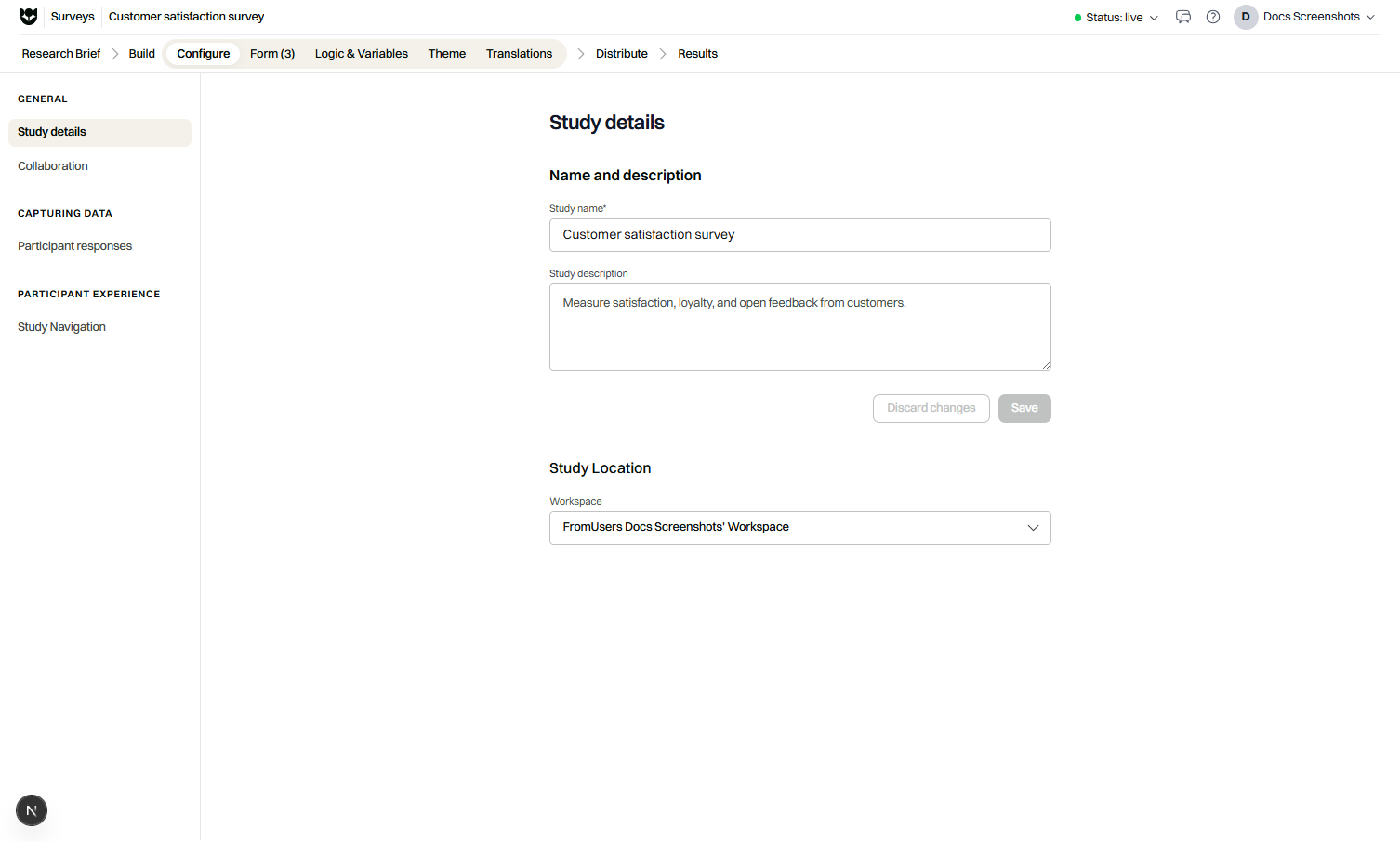
- Open Configure.
- Set the title participants and teammates will recognize.
- Review language defaults.
- Open survey settings for partial save and multiple-response controls.
- Attach legal pages if your organization requires them.
Build content
Section titled “Build content”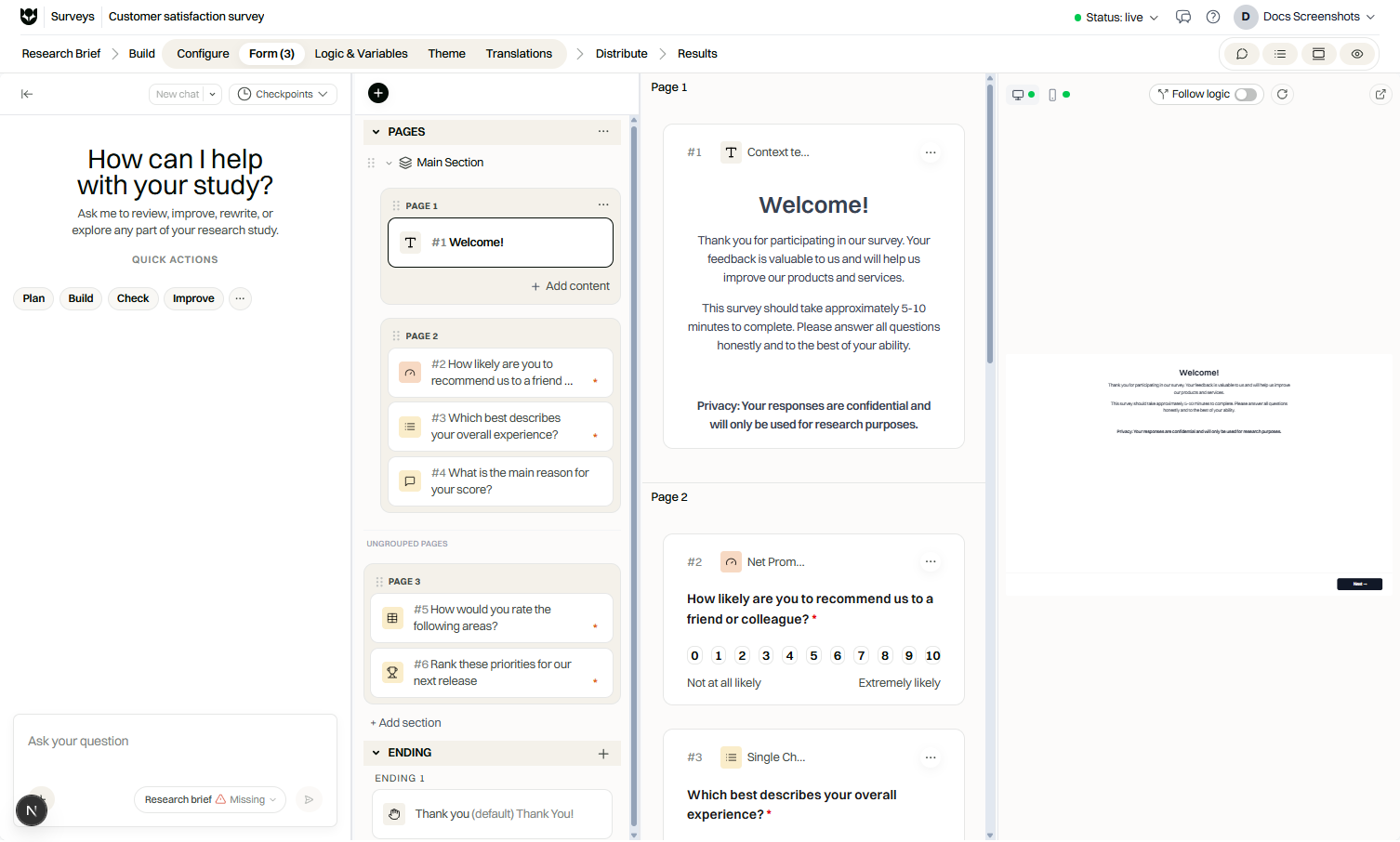
- Open Build.
- Add pages for screener, core questions, and closing content.
- Insert questions from the library (everything except interactive usability tasks).
- Group related items with sections and subsections.
- Mark a screener page when you need qualification.
- Add at least one ending.
Keep required questions intentional. Long mandatory grids increase abandonment.
Logic, variables, and brand
Section titled “Logic, variables, and brand”- Open Logic to show or skip questions based on answers.
- Define variables when you need stored values for later rules or text.
- Open Brand and apply a branding template.
- Add translations if you will field in multiple languages (up to 21).
Preview before Live
Section titled “Preview before Live”- Open Preview.
- Test each branch you care about.
- Check mobile layout.
- Confirm endings for both qualified and disqualified paths.
Then follow Preview and publish.
Example: product satisfaction pulse
Section titled “Example: product satisfaction pulse”- Page 1 screener: recent usage.
- Page 2: overall satisfaction rating and NPS-style score if you use that pattern.
- Page 3: open text for improvement ideas.
- Ending: thank you.
- Enable prevent multiple responses with cookie for a lightweight duplicate guard.
- Set Live and share the respond link.
Limitations
Section titled “Limitations”- Interactive tasks are for usability tests, not surveys.
- Coffee enforces question, response, and active-study caps.
- Email sendouts and several advanced question types need Pro.
Related
Section titled “Related”Common questions
Can I draft a survey with AI?
Yes on Pro and Custom. Provide a brief in the creation flow, then edit every generated question before you go Live.
How many questions can I add on Coffee?
Coffee allows up to 20 questions per study, along with limits on active studies and responses.
Can I reuse branding?
Yes. Apply an organization branding template from the Brand area of the editor.